
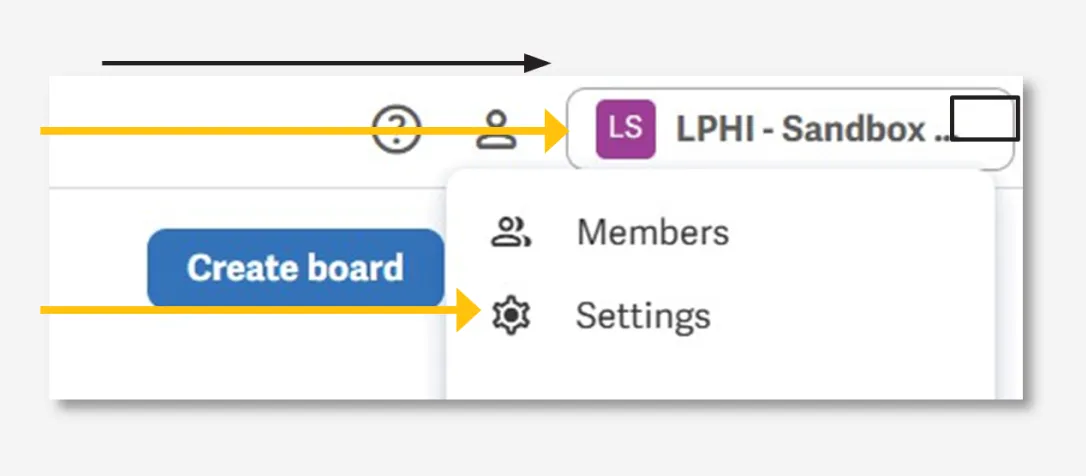
Navigate to the upper right corner of the workspace and click the workspace name. Go to Settings.
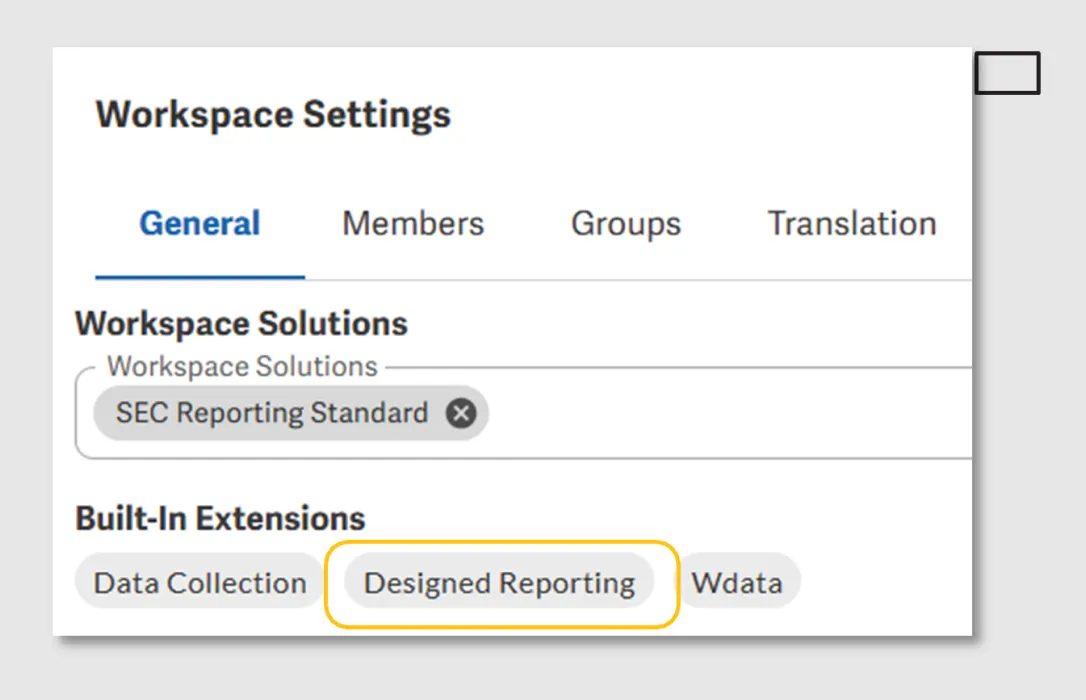
Under General Settings, view the Built-In Extensions available in the workspace. See if Designed Reporting is included.
To distinguish a document with Designed Reporting features, the client can navigate to a document’s Edit Toolbar and open the Insert Menu. More added functionalities can also be observed across the Edit Toolbar of a designed report.
Standard Document Edit Toolbar

Document Edit Toolbar with Designed Reporting

Features included in Designed Reporting
Floating Objects
Floating objects encompass text boxes, tables, images, charts, and shapes that can be freely moved and positioned on a page. The mobility of these objects makes placement simple; inserting, moving, formatting, and updating the “Object Properties” of these floating objects are actions available for Designed Reporting users.
Inline Objects Options

Floating Objects Options

Inline Objects Properties

Floating Objects Properties

Movement and Formatting Capabilities for Floating Objects


Image Improvements
Users can add Scalable Vector Graphics (SVG) images into their content, allowing for dynamic visuals. Furthermore, the resizing of images and the option to reduce resolution during export provide users with precise control over visual elements, ensuring optimal customization and presentation.
Inline Image
Aligned with other document content

Floating SVG Image
Equipped with resize, anchor, and rotation markers to be freely resized, moved, and positioned on a page

File Colors
Users can use File Colors to customize a shared set of colors in a document, presentation, or spreadsheet. It’s significant to note that while all users benefit from these shared colors, file Owners hold exclusive rights to import, export, and clear the color scheme.
Color Options in Standard Workspace

Color Options in Designed Reporting

Character Spacing (Expand or Condense)
Character spacing enables users to expand or condense the space between characters in a document, spreadsheet, or presentation. This feature can be used to enhance readability, provide a contemporary appearance to user content, and control the text layout on a page.

Fixed Width in EDGAR
Fixed width in EDGAR HTML, made possible by the “EDGAR output to page view” feature in Designed Reporting, ensures that the submission closely resembles the Workiva document editor view, or the exported PDF, and is not compelled to expand across the screen. This feature maintains a consistent layout with what users see in the platform, preserving the visual integrity of the design elements as intended.

Standard EDGAR HTML Export

EDGAR HTML Export with Fixed Width or EDGAR Output to Page View Feature Enabled

Floating Object Limitations
- Floating content, specifically text boxes, tables, charts, and shapes, are currently not equipped to be tagged with XBRL Facts. If there is a requirement to represent the content as an XBRL Fact, such as Text Block Tags, it is advisable to create it in inline form for the XBRL tagging to be successfully completed.
- PDF blacklines currently do not support visualizing changes to floating content.
- Applying automated footnotes in floating objects is currently not supported.
EDGAR Filing Limitations
As outlined in the official Designed Reporting for EDGAR article published by Workiva, it’s important to be aware of EDGAR filing limitations imposed by the SEC.
- Filings are limited to a maximum of 500 exhibits/graphics.
- The filing size is capped at 200 MB.
- EDGAR exclusively supports .jpg and .gif image file formats. Although SVG image file formats can be incorporated into a designed document, they will be converted to .gif during the filing process, resulting in some image fidelity loss.
- Workiva shapes, which are SVGs, will also undergo conversion to .gif, with the exception of rectangles.
- Images in .gif format do not support partial transparency, meaning any transparent background fill in a shape will render the shape fully transparent. Rectangles can retain transparent background fills.
- EDGAR does not accommodate embedded fonts. Consequently, the use of non-web-safe fonts may affect the text layout in a filed document. It is advisable to use web-safe fonts when incorporating Designed Reporting elements into filing documents.
Frequently Asked Questions
Have the Designed Reporting for EDGAR features been officially launched?
Yes, as part of an extension available for all solutions that must be directly purchased from Workiva.
How do we get the Designed Reporting for EDGAR features enabled in our workspaces?
To enable the Designed Reporting for EDGAR features in the client’s workspace, clients are advised to contact their Workiva CSM for support in activation.
What sets apart the Design Features utilized in ESG reports from the Designed Reporting for EDGAR features?
While these features are identical, distinctions arise in their application within the document. In ESG reports, HTML rendering is a non-issue since these reports are not filed with the SEC. Conversely, Designed Reporting for EDGAR allows users to export HTML in a fixed width by utilizing the exclusive “EDGAR output to page view” feature specifically tailored for SEC filing documents, giving it the same look and feel as the Workiva document editor view. Additionally, Designed Reporting for EDGAR permits the filing of documents with background images or color.
What is the difference between an inline and a floating object?
Inline objects stay in the flow of the text and doesn’t disrupt the normal flow of words. Meanwhile, floating objects can be placed anywhere on the page, not necessarily in the text flow, and can overlap with text or be positioned separately.
What is a web-safe font and what happens when a non-web-safe font is used?
Web-safe fonts are fonts that are universally accessible across various operating systems and web browsers. These fonts are deemed safe because they are usually pre-installed on most devices, guaranteeing consistent display regardless of what web browser a reader views a report on. Common examples include Arial, Times New Roman, and Helvetica. In cases where non-web-safe fonts are used and the end viewer’s system lacks the specific font used in a document, a fallback mechanism occurs wherein the system automatically switches to an available alternative font. For instance, a sans-serif font may default to Helvetica, while a serif font may default to Times New Roman. The Web safe fonts article by Workiva tackles web-safe fonts available on both Mac and Windows systems.
Do we need to avoid using non-web-safe fonts in SEC filing documents?
While the use of web-safe fonts is strongly recommended, the clients have the freedom to choose their brand fonts or any preferred fonts. If clients opt to use non-web-safe fonts in their SEC reports, it is crucial to bear the potential impact in mind and to consider utilizing the Designed Reporting features within the boundaries of EDGAR.
Since SEC’s EDGAR filing system does not support embedded fonts, how will this affect the appearance of the HTML counterpart of the document?
Without embedded fonts, the HTML files submitted to the SEC may not display as intended if the fonts used are not readily available on the systems or devices used to view the documents.
This can lead to potential concerns such as:
- Substitution of Fonts: In the absence of embedded fonts, the viewer’s system may substitute the utilized fonts with default or pre-installed fonts. This substitution can alter the document’s visual style and readability.
- Formatting Inconsistencies: Fonts play a crucial role in defining the formatting and layout of a document. Without embedded fonts, there’s a risk of inconsistencies in how the document appears across different platforms, potentially impacting its presentation.
- Loss of Intended Design Elements: If specific fonts are integral parts of the document design, not having them embedded may result in the loss of intended design elements, affecting the document’s visual appeal and branding.
Here are examples of how non-embedded and non-web-safe fonts affect the appearance of the HTML counterpart:
Differences in font rendering can lead to spacing issues
Workiva Document Editor View

HTML Export

Differences in font rendering can result in changes in line breaks
Workiva Document Editor View

HTML Export

Differences in font rendering can result in cut offs
Workiva Document Editor View

HTML Export
